In This Guide
Patent drawings are governed by a single rule: 37 CFR 1.84. That rule doesn't care which software you used. What matters is whether the output has the right margins, line weights, reference numerals, and shading conventions.
That makes "best patent drawing software" a function of three things: how fast you can produce compliant output, how much it costs, and how steep the learning curve is for your specific patent type. A mechanical inventor on AutoCAD has a different best-tool answer than a software inventor drawing block diagrams.
Below, we benchmark 10 tools: general-purpose CAD, vector design tools, diagramming software, and AI-native patent drawing tools, with current 2026 pricing and an honest take on which patent types each one suits. No affiliate ranking. Just what works.
Quick Picks
- Best overall (cost + speed): PatentDrawingAI : $19–$399/mo · auto-formats to §1.84 from sketches, photos, or CAD renders
- Best for mechanical CAD users: AutoCAD: ~$1,865–$2,030/yr · the industry default for engineers already in the Autodesk ecosystem
- Best free option: Affinity Designer v3: $0 · vector tool that's been free since October 2025 (post-Canva acquisition)
- Best for software / method patents: Microsoft Visio Plan 2: $15/user/mo · best-in-class for block diagrams and flowcharts
- Best for non-CAD designers: SmartDraw: $9.95/mo · template-driven, low learning curve, decent for diagrams
- Best perpetual license: CorelDRAW Graphics Suite 2026: ~$549 one-time · no subscription required
Side-by-Side Comparison Table
| Tool | 2026 Price | Learning Curve | Best For | USPTO Output |
|---|---|---|---|---|
| PatentDrawingAI | $19–$399/mo · ~$2–$5 per drawing | 15 min | Any patent type | Auto-formatted to §1.84 |
| AutoCAD | ~$1,865–$2,030/yr · $235/mo | 20–40 hrs | Mechanical, civil | Manual setup required |
| Microsoft Visio Plan 2 | $15/user/mo | 5–10 hrs | Software, methods, block diagrams | Manual setup required |
| Microsoft Visio Plan 1 | $5/user/mo | 5 hrs | Web-only diagramming | Manual; export limited |
| Adobe Illustrator | $20.99/mo annual | 15–25 hrs | Design patents, surface shading | Manual setup required |
| CorelDRAW | $249/yr · ~$549 one-time | 10–20 hrs | Design, perpetual license | Manual setup required |
| Affinity Designer v3 | FREE | 10–20 hrs | Free vector for any patent type | Manual setup required |
| SmartDraw | $9.95/user/mo | 3–8 hrs | Method patents, flowcharts | Manual; templates help |
| FreeCAD | FREE (open source) | 30–60 hrs | Mechanical inventors with patience | Manual setup required |
| Inkscape | FREE (open source) | 15–30 hrs | Free vector alternative | Manual setup required |
All 10 Tools: Detailed
1. PatentDrawingAI
$19–$399/moWeb app · subscription model · 5 credits per drawing
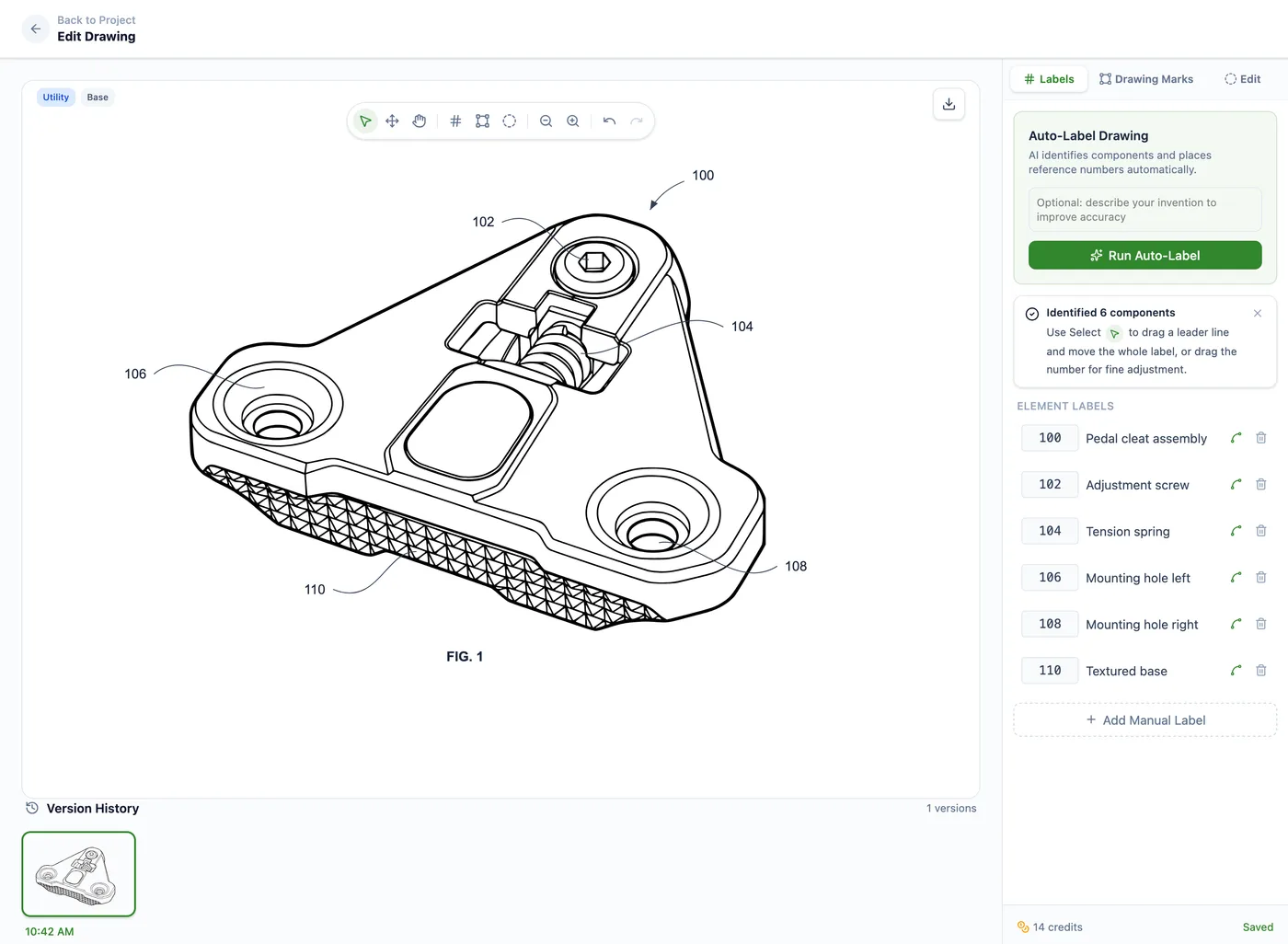
Built specifically for patent drawings. Upload a sketch, photo, or CAD render exported as an image and it produces a §1.84-formatted line drawing with correct margins, line weight, reference numerals, and hatching in 1–3 minutes. The editor lets you adjust line weight, shading, broken-line scope, and reference numbering through plain-language instructions instead of vector tools. Auto-Label identifies components and places reference numerals automatically; you drag to reposition leader lines or fine-tune individual labels. The drawing-set view assembles multiple drawings into a multi-sheet, filing-ready set with X/Y numbering (§1.84(t)), layout presets, and A4/Letter paper toggle. Pre-export validation flags figures outside the sight area (§1.84(g)), sheet-numbering issues, and cross-figure reference-numeral reuse (§1.84(p)(5)), catching common OPAP rejection triggers before submission. Export as multi-page PDF (filing-ready), PNG zip (one per sheet), or SVG zip (vector, editable).
Pros
- No formatting setup; output is §1.84-ready by default
- Sketches, photos, and CAD renders work as image inputs
- Lowest per-drawing cost ($2–$5)
- Editor uses plain-language commands
Cons
- Highly unconventional inventions may need manual cleanup
- Subscription required for volume use
- Newer category with fewer training resources than AutoCAD
Pricing breakdown: Starter $19/mo (~5 drawings); Pro $79/mo (~25 drawings); Firm $199/mo (~80 drawings); Team $399/mo (~200 drawings). Top-up packs available: $20 for 4 drawings, $50 for 11 drawings, $100 for 24 drawings.
Best for: any inventor or attorney filing more than 1–2 patents per year. The Pro tier breaks even against a single $79 illustrator invoice.
2. AutoCAD
$1,865/yr · $235/moDesktop (Windows/Mac) · web/mobile companions · subscription
The CAD program patent illustrators have used for two decades. Precise drafting, layered organization, and customizable line weights make it the industry default for mechanical patents. The downside is the learning curve and the price.
Pros
- Industry standard; every patent illustrator knows it
- Precise control over line weight, layers, hatching
- Direct import of STEP, IGES, DXF, and DWG
- Generates orthogonal views automatically from 3D models
Cons
- Most expensive option ($1,865/yr individual)
- 20–40 hours to become productive
- No built-in §1.84 templates; you set up margins and reference numerals manually
Pricing: $235/month, $1,865/year, or $5,315 for 3 years. Verify current pricing on the Autodesk store . Autodesk runs frequent promotions.
Best for: mechanical engineers who already use AutoCAD professionally. If you don't, the time to become productive will exceed the cost of any other option here.
3. Microsoft Visio (Plan 1 & Plan 2)
$5–$15/user/moPlan 1 (web only) · Plan 2 (desktop + web) · annual subscription
The default tool for software, business-method, and system-architecture patents. Visio's stencil libraries handle block diagrams, flowcharts, network topologies, and database schemas with minimal setup. Not the right tool for mechanical inventions.
Pros
- Cheapest enterprise diagramming tool ($5/mo Plan 1)
- Excellent for flowcharts, block diagrams, network diagrams
- Handles software and methods better than CAD tools
- Integrates with Microsoft 365 if you already have it
Cons
- Plan 1 is web-only, with no desktop app and limited export options
- Not suitable for mechanical drawings
- No CAD interoperability
- Manual setup for §1.84 margins and reference numeral height
Pricing: Visio Plan 1 is $5/user/month annual; Plan 2 is $15/user/month annual (both with monthly-billing options at higher rates). Verify on the Microsoft Visio plans page.
Best for: software, business-method, and system-architecture patent drawings. Pairs well with PatentDrawingAI for the architectural figures plus AI-generated cover figures.
4. Adobe Illustrator
$20.99/mo annualDesktop · Creative Cloud subscription
The vector-art standard. Excellent for surface-shaded design patents, logo-style ornamental drawings, and any application where the visual fidelity matters. You're paying for design power, not patent-specific features.
Pros
- Best-in-class vector tools with fine control over line, shading, and gradients
- Excellent surface-shading workflow for design patents under §1.152
- Industry standard for graphic designers (no training cost if you have one)
Cons
- No patent-specific templates or §1.84 enforcement
- Subscription only; perpetual license discontinued
- Not optimized for mechanical or schematic drawings
Pricing: $20.99/month with annual commitment ($239.88/yr if paid upfront); $34.49/month month-to-month. See the Adobe pricing page . Adobe restructures pricing periodically, so verify before purchase.
Best for: design patents on consumer products, ornamental designs, and any application where surface contour shading is the primary visual element.
5. CorelDRAW Graphics Suite 2026
$249/yr or ~$549 one-timeWindows/Mac/iOS/Web · subscription or perpetual license
The closest direct competitor to Illustrator that still offers a perpetual license. Strong vector tools, decent CAD compatibility, and a one-time payment option for users who don't want subscriptions.
Pros
- Perpetual license available (~$549 one-time)
- Comparable vector tools to Illustrator at lower long-term cost
- Cross-platform: Windows, Mac, iOS, and web
Cons
- Smaller user community than Illustrator
- No patent-specific templates
- Perpetual license includes only 1 year of updates
Pricing: Subscription $269/year ($22.42/month effective); perpetual one-time $439 with 1 year of updates. Verify on coreldraw.com.
Best for: designers who want vector capabilities on a perpetual license, without locking into Adobe's subscription model.
6. Affinity Designer v3
FREEWindows/Mac/iPad · free since October 2025
Affinity Designer became free in October 2025 after Canva's acquisition. It's now the most capable free vector tool on the market and competitive with Illustrator on most patent-drawing tasks. Available on Windows, Mac, and iPad.
Pros
- Free, with no subscription or upgrade fee
- Vector tools comparable to Illustrator and CorelDRAW
- Cross-platform including iPad
- Good for design patents and vector tracing
Cons
- Some advanced features now gated behind Canva Pro subscription
- No patent-specific templates
- Manual setup for §1.84 compliance
Pricing: Free as of October 2025. Get it from affinity.studio.
Best for: inventors who want a capable vector tool without paying. Good first stop before deciding whether to invest in Illustrator or CorelDRAW.
7. SmartDraw
$9.95/user/mo · $297 perpetualWeb · subscription or one-time perpetual
SmartDraw markets itself as a patent drawing tool, with templates for the most common patent figure types. The reality is that it's strongest for flowcharts and block diagrams; for mechanical or design patents, you're better off with vector or CAD.
Pros
- Affordable at $9.95/month individual
- Patent drawing templates
- Low learning curve (3–8 hours)
- Perpetual license available
Cons
- Limited for mechanical drawings
- Output requires manual review for §1.84 reference numeral height
- Templates can produce generic-looking results
Pricing: Individual $9.95/user/month; Team $8.25/user/month; Site $5/user/month annual; perpetual ~$297/user with 1 year of updates. Verify on smartdraw.com.
Best for: non-CAD users drafting flowcharts or block diagrams for software, method, or business-method patents.
8. FreeCAD
FREE (open source)Windows/Mac/Linux · open source
The open-source equivalent of SolidWorks or Fusion 360. Capable but rough, with a significantly steeper learning curve than commercial CAD because the documentation and UI lag behind. Worth it if you have time and zero budget.
Pros
- Free
- Parametric 3D modeling that can generate views from a 3D model
- Active community
- Imports STEP and IGES
Cons
- 30–60 hour learning curve
- UI feels dated compared to commercial CAD
- Frequent stability issues with complex assemblies
- No patent-specific features
Best for: hobbyist mechanical inventors with strong technical chops and no budget.
9. Inkscape
FREE (open source)Windows/Mac/Linux · open source
The open-source vector editor, mature and well-maintained. Less polished than Affinity Designer or Illustrator but functionally complete for patent-drawing tasks.
Pros
- Free
- Mature SVG-native vector editor
- Cross-platform
- Adequate for line drawings, design patents, schematic-style figures
Cons
- UI less refined than commercial alternatives
- 15–30 hour learning curve
- No patent-specific templates
Best for: open-source advocates who want vector capabilities without licensing fees.
10. SolidWorks (and SolidWorks Drawings)
~$2,820/yr (Design Standard) +Desktop · annual subscription · enterprise
Industrial-strength 3D CAD. The drawing module exports orthogonal views, exploded assemblies, and section views directly from 3D parts and assemblies. Overkill for individual inventors but the gold standard for mechanical engineering teams.
Pros
- Drawings auto-generated from 3D parts/assemblies
- Native exploded view, section view, detail view tools
- Industry standard in industrial design and engineering
Cons
- Enterprise-tier pricing: Design Standard ~$2,820/yr; Professional and Premium tiers run $3,400–$4,700/yr
- Steep learning curve (40+ hours)
- Requires Windows desktop
Best for: companies that already use SolidWorks for product engineering. Generating patent drawings from existing CAD models is essentially free if you already own the license.
Best Patent Drawing Software for Law Firms
Short answer: the best patent drawing software for a law firm depends on where the work piles up. If you want AI across drafting and prosecution, full platforms like DeepIP or Solve Intelligence fold figure work into a larger patent platform. If the bottleneck is the drawings themselves, including §1.84 formatting, reference numerals, client-matter tracking, and predictable per-figure cost, a focused tool such as PatentDrawingAI is built for that job.
A law firm chooses drawing software differently than a solo inventor does. An inventor filing once wants the cheapest way to get a usable figure. A firm filing dozens of applications a year has to weigh client confidentiality, drawing objections, matter attribution, billing review, and seat cost across the team. The practical question is simple: is the drawing itself your bottleneck, or do you want AI across the full drafting workflow?
What firms weigh that inventors do not
- 37 CFR §1.84 formatting. Missing margins, line quality, reference numerals, or sheet numbering can trigger drawing objections.
- Confidentiality. Unfiled invention material needs private storage, no model training on uploads, and clear security controls.
- Matter and billing attribution. Firms need drawing work tied to clients, matters, docket numbers, responsible attorneys, and usage exports.
- Cost at volume. Published seat pricing and predictable per-drawing cost are easier to budget than one-off quotes or manually tracked illustrator invoices.
Two software categories
Full patent platforms. DeepIP and Solve Intelligence cover broader patent workflows such as drafting, prosecution, review, search, charts, and figure work. Neither publishes self-serve pricing on the pages reviewed for this update, so firms should confirm current pricing directly with each vendor.
Focused drawing tools. PatentDrawingAI is narrower. Upload a sketch, photo, or CAD render exported as an image, generate a line drawing in about 1-3 minutes, use Auto-Label to place reference numerals, assemble formal drawing sheets, and export filing-ready PDF, PNG, or SVG. Matter Management links drawing work to client matters and exports usage for billing or internal review.
How to choose
If the work piling up is drafting and prosecution and your firm wants one AI platform for that broader workflow, start by evaluating DeepIP and Solve Intelligence. If the work piling up is the drawing set, including §1.84 formatting, reference numbers, formal drawing sheets, and matter-based usage tracking, PatentDrawingAI handles that specific job without replacing your existing drafting workflow. For deeper comparisons, see PatentDrawingAI vs DeepIP, PatentDrawingAI vs Solve Intelligence, and the full patent drawing software comparison.
See PatentDrawingAI in Action
Watch how fast you can go from a photo to a filing-ready drawing.
Try the DemoWhich Tool For Your Patent Type?
| If your patent is... | Best primary tool | Best AI complement |
|---|---|---|
| Mechanical (consumer product) | AutoCAD or Affinity Designer | PatentDrawingAI for cover figures from sketches |
| Mechanical (industrial) | SolidWorks (if owned) or AutoCAD | PatentDrawingAI for quick line-art views |
| Design patent (consumer product) | Adobe Illustrator or Affinity Designer | PatentDrawingAI for formatting each needed view |
| Design patent (GUI / icon) | Adobe Illustrator | PatentDrawingAI to format sketches |
| Software / method patent | Microsoft Visio Plan 2 | PatentDrawingAI for system overview figures |
| Electronic / circuit patent | Visio + Illustrator | PatentDrawingAI to clean up schematics |
| Medical device | SolidWorks or AutoCAD | PatentDrawingAI for anatomical-context figures |
| Provisional (informal drawings OK) | Phone camera + free PDF tool | PatentDrawingAI for §1.84 versions before non-provisional |
What §1.84 Actually Requires (And How Each Tool Handles It)
Whatever software you choose, the output has to satisfy 37 CFR 1.84. Six formatting requirements every tool must meet:
| Requirement | The rule | Tools that auto-format |
|---|---|---|
| Margins | Top ≥ 2.5 cm, left ≥ 2.5 cm, right ≥ 1.5 cm, bottom ≥ 1.0 cm [§1.84(g)] | PatentDrawingAI (auto). Others: manual page setup. |
| Reference numeral height | ≥ 0.32 cm (1/8 inch) [§1.84(p)(3)] | PatentDrawingAI (auto). Others: set text size manually. |
| Line weight | Durable, clean, black, uniformly thick [§1.84(l)] | PatentDrawingAI (auto). Others: define stroke width. |
| Hatching | Parallel lines, preferably 45°; different angles for juxtaposed elements [§1.84(h)(3)] | PatentDrawingAI (auto). AutoCAD (built-in patterns). Others: manual. |
| Sheet numbering | X/Y format, centered top, larger than reference numerals [§1.84(t)] | PatentDrawingAI (auto). Others: manual. |
| Solid black shading | Prohibited except for bar graphs / color black [§1.84(m)] | PatentDrawingAI (auto-formats). Others: avoid manually. |
The general-purpose tools (AutoCAD, Illustrator, CorelDRAW, Affinity, SmartDraw) require you to know the rules and apply them yourself. They give you the controls; they don't tell you what's compliant. The advantage of patent-specific tools including AI-native ones is they enforce these rules by default. For the full §1.84 walkthrough, see our USPTO patent drawing requirements guide.
Workflow Comparison: Same Drawing, Different Tools
Imagine you're drawing a perspective view of a coffee mug for a utility patent. Here's the workflow comparison from "I have a sketch" to "I have a §1.84-compliant PDF":
| Tool | Steps | Time |
|---|---|---|
| PatentDrawingAI | Upload source image → AI generation → post-process line art → Auto-Label/reference numerals → edit labels/marks → assemble §1.84 sheets → export PDF, PNG, or SVG | About 1–3 min per generated figure, plus review/export |
| AutoCAD | Set up template → trace from sketch → add reference numerals → export PDF | 3–6 hours |
| Adobe Illustrator | Set up artboard → import sketch → trace with vector tools → format text → export PDF | 4–7 hours |
| Affinity Designer | Same as Illustrator | 4–7 hours |
| SmartDraw | Choose template → import sketch as background → trace shapes → label → export | 2–4 hours |
| Microsoft Visio | Not recommended for organic shapes; better for diagrams | n/a for this case |
PatentDrawingAI drawing editor
The honest trade-off
General-purpose tools give you maximum control and zero subscription lock-in if you have time and skill. Patent-specific tools save time at the cost of fine-grained control. For most inventors filing 1–10 patents per year, the time savings dominate, which is why we've put PatentDrawingAI at the top of the list.
Frequently Asked Questions
It depends on the bottleneck. If your firm wants AI across the whole drafting and prosecution workflow and has budget for a demo-led platform, DeepIP and Solve Intelligence include figure generation inside broader patent systems. If the bottleneck is the drawings themselves, a focused tool such as PatentDrawingAI handles §1.84 formatting, reference numerals, formal drawing sheet assembly, and matter-based tracking with published monthly pricing.
The USPTO does not specify or restrict the software used to create patent drawings. The only requirement is that the output meets 37 CFR 1.84 formatting and disclosure standards. AutoCAD, Illustrator, Visio, AI tools, and hand drawings are all accepted on equal terms.
The cheapest way is free software (Affinity Designer, Inkscape, FreeCAD) plus your own time. The cheapest fast way is an AI-native tool: PatentDrawingAI starts at $19/mo for 5 drawings, which works out to $3.80 per drawing including all formatting work. The cheapest illustrator with publicly listed pricing charges $25–$29 per sheet.
You can in principle, but the output rarely meets §1.84 standards without significant manual cleanup. Word and PowerPoint don't enforce reference numeral height, don't allow precise line weight control, and don't export at 300 DPI by default. They're acceptable for provisional applications (informal drawings allowed) but not recommended for non-provisional filings.
Yes. Affinity Designer (free since October 2025) is the most capable free option, with a full vector editor on Windows, Mac, and iPad. Inkscape (open source) and FreeCAD (open source) are also free. None of them auto-format to §1.84; you set up margins, line weights, and reference numerals manually.
Use AutoCAD if your invention is mechanical, civil, or otherwise based on physical geometry, especially if you already know AutoCAD professionally. Use Visio if your invention is software, business-method, or anything that's primarily diagrammed (block diagrams, flowcharts, architecture). For most filings, the right answer is "neither; use a patent-specific tool" but if you must choose between the two, the patent type decides.
For design patents where surface shading and a coordinated multi-view set matter, Adobe Illustrator and Affinity Designer are the strongest general-purpose options. PatentDrawingAI's design-patent process helps create each needed figure from clear source images or CAD renders and formats the output against §1.152's surface-shading guidance.
The learning curves vary widely: SmartDraw and Visio (3–10 hours), Affinity Designer and Illustrator (15–25 hours), CorelDRAW (10–20 hours), AutoCAD (20–40 hours), FreeCAD (30–60 hours). Patent-specific AI tools have effectively no learning curve; the upload-and-review workflow takes 5–15 minutes to learn.
For most utility, design, and provisional applications with reasonable source material (sketches, photos, CAD), AI tools produce filing-ready drawings. For unusually complex inventions such as semiconductor cross-sections with 50+ reference numerals, anatomical medical-device contexts, or large mechanical assemblies, manual illustrator review or hybrid workflows still add value. A common pattern among practitioners is to use AI for the bulk of routine drawings and keep an illustrator on retainer for the unusual cases.
Try PatentDrawingAI Free
Upload your invention and see what it will draw at no cost. See whether the AI workflow fits before committing to a subscription. No credit card required.
See What We'll DrawRelated Reading
- 40+ Real Patent Drawing Examples : granted U.S. patents annotated against §1.84
- Utility Patent Drawings: Complete Guide : the technical/functional drawing format
- Design Patent Drawings: Complete Guide : seven-view layout and §1.152 surface shading rules
- USPTO Patent Drawing Requirements : full §1.84 compliance checklist
- Patent Drawing Software Comparison : feature-by-feature comparison matrix
- SmartDraw Alternative for Patent Drawings
- How to Make Patent Drawings (Step-by-Step)
- Patent Drawing Types Hub : every patent drawing topic on the site
Sources checked
Pricing, product, and rule references were checked against public pages available on June 15, 2026. Tool pricing changes often; verify live vendor pages before purchasing software or committing firm-wide.
- 37 CFR §1.84, Standards for drawings
- DeepIP homepage and patent drawings generation page
- Solve Intelligence homepage and product pages
- PatentDrawingAI product facts were checked against the internal master reference and the live product pages.