Overview
For years, inventors and patent teams used AutoCAD, Illustrator, Visio, or outside drawing services because patent drawings had no purpose-built self-serve workflow. Those options can work, but they often add friction: steep learning curves, manual reference numbering, USPTO formatting setup, export cleanup, per-sheet pricing, and revision cycles. PatentDrawingAI removes much of that friction. Start from a sketch, photo, slide diagram, screenshot, or CAD render exported as an image, then generate, edit, label, assemble, and export filing-ready drawings in one workflow. That can significantly reduce the time and cost between invention disclosure and a patent application that is ready to file. Traditional tools still make sense when you already use them well or need direct CAD/vector control, but they should no longer be the default starting point for most inventors.
This comparison still matters because many people search for the old tools first. The better question in 2026 is not which general-purpose tool is technically capable. It is which workflow gets you from source material to filing-ready patent drawings with the least avoidable setup, rework, and cost.
Quick match by invention type
Sketch, photo, screenshot, slide diagram, or CAD render? Start with PatentDrawingAI. It is built for image-to-drawing generation, edits, Auto-Label reference numerals, Drawing Set assembly, and PDF/PNG/SVG export.
Mechanical invention with DWG or DXF files? AutoCAD still makes sense if you already know the software and need direct CAD geometry control.
Design-patent shading or vector control? Illustrator still has a place when direct curve, broken-line, and surface-shading control are the work.
Software or process diagrams? Visio can work if your team already uses it. If you have a clear diagram image or screenshot, PatentDrawingAI can often shorten the path to a filing-ready figure.
PatentDrawingAI: the purpose-built workflow
PatentDrawingAI is the default starting point when your real goal is filing-ready patent drawings, not learning CAD, vector design, or diagramming software. It is built around the patent drawing workflow itself: source image input, AI generation, concrete edits, reference numerals, drawing sheet assembly, and filing-ready export.
Upload a clear photo, sketch, slide image, screenshot, or CAD render exported as an image. PatentDrawingAI produces a filing-ready line drawing in about 1-3 minutes per figure. From there, you can type concrete edits such as "remove the background shadow," "thicken the leader lines," or "lighten the top surface," use Auto-Label to place reference numerals, and assemble figures onto sheets formatted to meet 37 CFR 1.84 before exporting PDF, PNG, or SVG.
PatentDrawingAI drawing editor
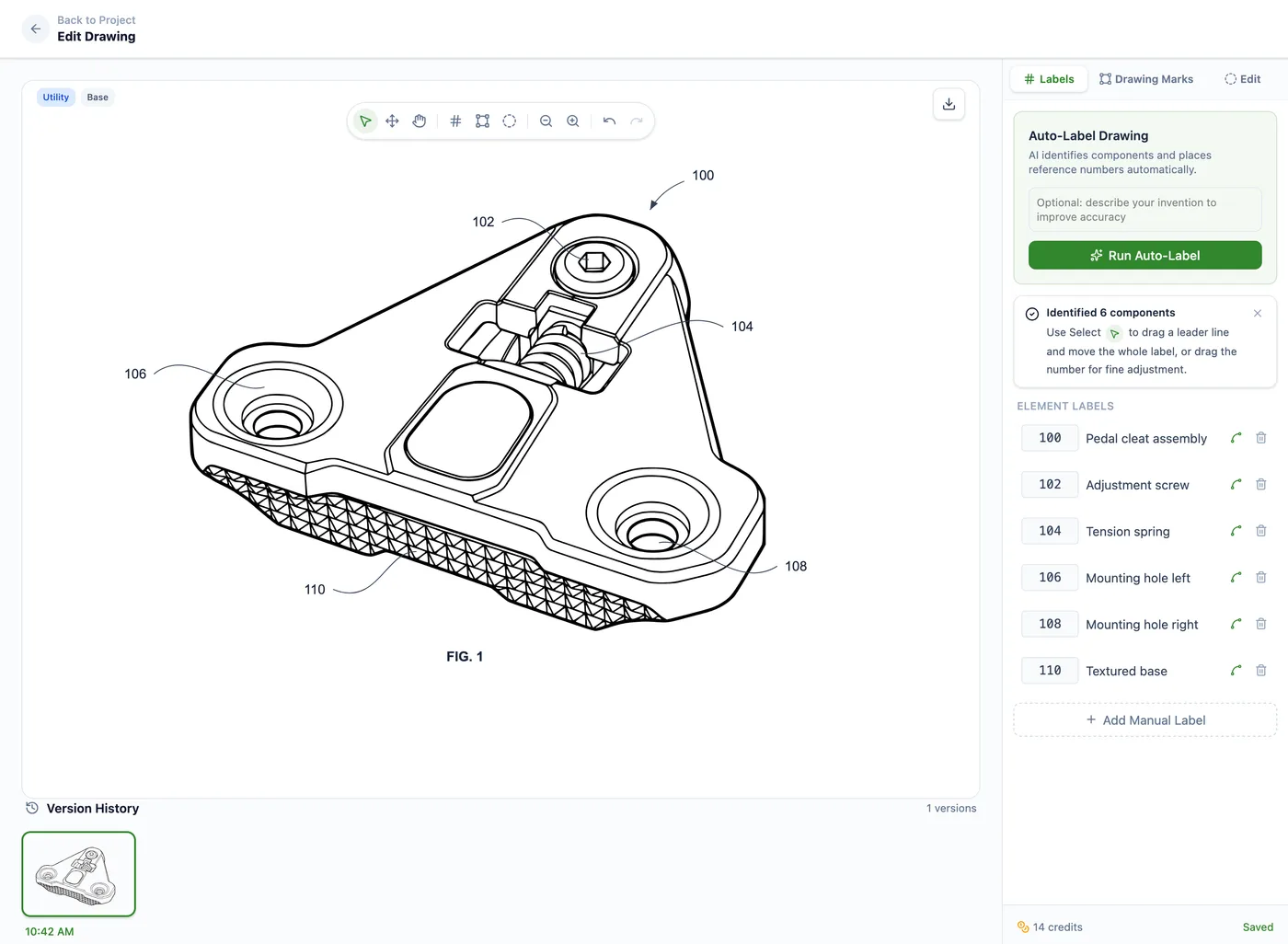
When PatentDrawingAI is the better fit
Start with PatentDrawingAI when you have usable source material and want to reduce the drawing bottleneck. It is strongest for inventors, founders, solo practitioners, and small teams that need filing-ready drawings without per-sheet service delays or a new software learning curve.
When a legacy tool still makes sense
- You need to edit CAD geometry directly rather than work from image inputs (AutoCAD or another CAD tool).
- You need direct vector control for design-patent surface shading, broken lines, or claim-scope presentation (Illustrator plus legal review may still be appropriate).
- Your team already uses Visio for software, electronics, or process diagrams and only needs light patent-formatting cleanup.
- You file consistently across multiple international offices and need jurisdiction-specific review before filing.
Why These Tools Still Come Up
AutoCAD, Adobe Illustrator, and Microsoft Visio are the three most-Googled software options for patent drawings. They occupy different parts of the market: CAD precision, vector design, and diagrammatic output. They are capable tools, but none was built for the full patent drawing path from source material to generated figure, reference numerals, formal sheets, and filing-ready export.
The real comparison is not which legacy tool is "best." It is whether a legacy tool is worth using instead of a purpose-built patent drawing workflow. Below we show where AutoCAD, Illustrator, and Visio still make sense, then compare them directly against PatentDrawingAI. For a broader software comparison, see our ranked review of the 8 best patent drawing software tools.
When AutoCAD still makes sense
AutoCAD
Strengths: AutoCAD is a strong fit for mechanical teams that already have DWG or DXF files and CAD skill. You can convert existing CAD geometry into flat 2D views, control layers, hide hidden lines, add reference numerals, and export a filing package after USPTO-specific setup.
Weaknesses: Steep learning curve for non-engineers. Subscription cost is high if patent drawings are your only use case. Pure 2D work feels heavy in a tool built for full 3D engineering.
Best for: Mechanical engineers, manufacturers, and patent illustration firms that already work in CAD.
Skip if: You do not already use CAD, you are starting from sketches or photos, or you want to avoid manual drawing-sheet setup.
How to get filing-ready output from AutoCAD
- Set up a paper space layout at 8.5 × 11 inches (USPTO Letter standard).
- Use consistent dark linework with enough weight and contrast to reproduce clearly.
- Use section hatching where a section view needs to show cut material, and keep patterns consistent across the set.
- Add reference numerals using a single-stroke font, minimum 0.32 cm tall.
- Export to PDF or an accepted image format for your filing workflow.
For a 5-sheet utility filing, expect hours of work if you are fluent in AutoCAD and have the source CAD files. Without source files, AutoCAD becomes a tracing tool, and PatentDrawingAI is usually the better starting point.
When Adobe Illustrator still makes sense
Adobe Illustrator
Strengths: Illustrator gives strong Bezier curve control, stroke styling, surface shading, and broken-line handling. Line weight, stroke style, and arrow conventions are easy to standardize across a figure set. Output to SVG, PDF, and image formats is direct.
Weaknesses: Built for design, not engineering. No native dimensioning, no parametric control. Layer management is less rigorous than AutoCAD. Reference numbering is manual.
Best for: Design patent teams, product styling matters, ornamental claims, packaging patents, GUI patents, and teams that already use vector tools.
Skip if: You need precise mechanical dimensioning, you are working from CAD files, or you do not already have vector drawing skill.
How to get filing-ready output from Adobe Illustrator
- Set up an artboard at 8.5 × 11 inches (USPTO Letter) or 21 × 29.7 cm (USPTO A4).
- Place the source sketch or photo on a locked reference layer.
- Trace with the Pen tool using consistent outline, hidden-line, and leader-line stroke styles.
- Apply surface shading for design patents using oblique line shading or stipple per MPEP §1503.02.
- Export to PDF for filing or SVG for archival.
For someone fluent in Illustrator, a single utility drawing often takes 30 to 90 minutes including reference numbering and cleanup. A 7-view design patent can take hours. If you do not need direct vector control, PatentDrawingAI avoids much of the manual tracing, labeling, and sheet setup.
When Microsoft Visio still makes sense
Microsoft Visio
Strengths: Visio includes diagram templates, stencils, network diagrams, UML support, BPMN support in Plan 2, and connector tools. Building a flowchart, block diagram, or system architecture diagram is faster in Visio than in a free-form vector editor. Output to SVG and PDF is straightforward.
Weaknesses: Not built for free-form illustration. Photorealistic perspective views or organic shapes are awkward to draw. No bezier control. Mac users have to use the web version, which is limited.
Best for: Software patents, electronics patents, process patents, IoT system diagrams, and business method patents when the team already works in Visio.
Skip if: Your invention is mechanical or ornamental, you need surface shading, or you do not already use Visio.
How to get filing-ready output from Microsoft Visio
- Use a custom 8.5 × 11 inch page size with 1-inch margins on top, 0.625 on left, 0.375 on right and bottom.
- Apply a network, software, engineering, or flowchart stencil set that matches the invention.
- Use single-stroke text labels at 12 pt or larger.
- Set all shapes to monochrome black-on-white.
- Export to PDF or SVG for filing.
For a software patent with 4 to 6 flowchart and block diagram figures, a Visio user can produce clean diagrams in a few hours. The biggest time sink is still reference numbering, patent-format cleanup, and matching figures to spec language.
Side-by-Side: PatentDrawingAI vs AutoCAD vs Illustrator vs Visio
Each row below is one dimension that matters when choosing a patent drawing workflow. Pricing changes frequently, so treat the table as a current-screening guide and confirm vendor checkout pages before you buy.
| Dimension | PatentDrawingAI | AutoCAD | Illustrator | Visio |
|---|---|---|---|---|
| Best starting point | Most inventors and small teams starting from a sketch, photo, diagram, screenshot, or CAD render image | Mechanical teams that already have DWG or DXF files | Design-patent teams that already need vector shading control | Software teams that already build flowcharts or system diagrams |
| Starting price | Starts at $19/mo; free upload and analysis | Regional monthly or annual subscription pricing | US$22.99/mo, annual billed monthly plan | $5/user/mo Plan 1; $15/user/mo Plan 2 |
| Learning curve | Low; purpose-built web workflow | Steep (40+ hrs) | Moderate (15+ hrs) | Mild (5+ hrs) |
| Time per drawing | About 1-3 min generation, then edits, labels, and sheet assembly | Hours if CAD files and CAD skill already exist | Often 30-90 min for a fluent vector user | Often 30-60 min for a simple diagram |
| Input model | Sketches, photos, slide diagrams, screenshots, and CAD renders exported as images | Native (DWG, DXF) | Limited (PDF, AI) | Limited (Visio, PDF) |
| Surface shading | Generated and editable; high-stakes design scope still needs review | Functional but tedious | Excellent | Limited |
| Manual vector control | Not a manual vector drafting tool | Limited | Best in class | Limited |
| Diagram workflow | Works from diagram images and screenshots | Engineering-focused | None built-in | Comprehensive (IEEE, ANSI, BPMN) |
| Reference numbering | Auto-Label plus manual label controls | Manual or block-based | Manual | Manual |
| USPTO export format | PDF, PNG, and SVG drawing-set export | PDF or image export after setup | PDF, SVG, image export | PDF, SVG |
| Mac support | Web app | Yes (full) | Yes (full) | Web only (limited) |
Cost reality at 5 drawings
PatentDrawingAI: the software is built around generation, edits, labels, sheet assembly, and export, so the cost comparison is mostly workflow time rather than a license plus manual drafting.
AutoCAD: the highest software cost here plus the time to prepare CAD layouts, drawing sheets, and exports.
Illustrator: lower subscription cost, but the real cost is vector tracing, shading, and manual reference numbering.
Visio: low software cost for diagrams, but less useful for mechanical views or ornamental product drawings.
None of the legacy-tool license prices include the dollar value of your hours, revision cycles, or the cost of outside drawing services. For a deeper cost breakdown, see our full patent drawing cost guide.
The Use-Case Decision Matrix
The default recommendation is PatentDrawingAI when the reader needs to turn source material into filing-ready drawings. The legacy tools win only when existing files, existing expertise, or direct CAD/vector/diagram control make them the efficient path.
| Your situation | Best choice |
|---|---|
| You are starting from a sketch, photo, slide diagram, screenshot, or CAD render image | PatentDrawingAI |
| You want to reduce drawing setup time, revision friction, and per-sheet service cost | PatentDrawingAI |
| You have a few drawings to make and no CAD, vector, or diagramming background | PatentDrawingAI |
| You file 5 or more applications a year and want a repeatable drawing workflow | PatentDrawingAI |
| You file rarely (one provisional this year) | PatentDrawingAI free upload and analysis |
| You have CAD files for a mechanical invention and use AutoCAD daily | AutoCAD |
| You already use Illustrator and need direct vector control for design-patent shading | Adobe Illustrator |
| You already build patent-ready flowcharts and system diagrams in Visio | Microsoft Visio |
| You need EPO, JPO, or CNIPA formatting alongside USPTO | Jurisdiction-specific review, with Illustrator or a service if direct control is required |
| You need direct edits to CAD geometry, not an image-based drawing workflow | AutoCAD or another CAD tool |
See What AI Will Draw From Your Image
Upload a sketch, photo, slide diagram, screenshot, or CAD render and see exactly what it will draw before you pay. No software install. No credit card. Filing-ready drawings arrive in about 1-3 minutes.
See What We'll DrawFrequently Asked Questions
For most inventors and small teams, PatentDrawingAI is the better default because it is purpose-built for filing-ready patent drawings. AutoCAD, Illustrator, and Visio still make sense when you already use them well: AutoCAD for existing CAD files, Illustrator for direct vector and design-patent shading control, and Visio for teams that already build flowcharts or system diagrams there.
Yes, especially for diagrammatic content such as flowcharts, block diagrams, and system architecture used in software and electronics patents. Visio is less useful for mechanical inventions, ornamental product drawings, and anyone who does not already know the tool. If the goal is to move from a diagram image to a filing-ready drawing set, PatentDrawingAI is usually the lower-friction path.
For many patent applications, yes. AutoCAD is powerful when the invention already exists as CAD and the team already knows the software, but it assumes CAD skill, setup time, and manual drawing-sheet preparation. If you are starting from sketches, photos, or rendered images, PatentDrawingAI is usually faster.
For someone fluent in Illustrator, a single utility drawing often takes 30 to 90 minutes including reference numbering and cleanup. For a beginner, expect 4 to 8 hours per drawing while learning the tool. If you do not already need direct vector control, PatentDrawingAI avoids much of that manual tracing, labeling, and sheet setup.
The cheapest software license is not always the cheapest path to filing-ready drawings. Free tools such as Inkscape and LibreOffice Draw still require manual setup, tracing, labels, and export cleanup. Published vendor pricing changes, so check Autodesk, Adobe, and Microsoft before buying. Adobe lists Illustrator at US$22.99 per month on an annual billed monthly plan, Microsoft lists Visio Plan 1 at $5/user/month and Plan 2 at $15/user/month, and PatentDrawingAI starts at $19/month with free upload and image analysis.
Some do, particularly for design patents where surface shading and broken-line precision matter. Many firms also use dedicated illustrators or services. A practical 2026 workflow is PatentDrawingAI first for ordinary image-to-drawing work, then specialist tools or services when a matter needs direct CAD/vector control, jurisdiction-specific formatting review, or claim-scope design-patent judgment.
Related Resources
- 8 Best Patent Drawing Software Tools in 2026 : full ranked list with mechanical and design notes.
- Patent Drawing Software Comparison : every major tool side-by-side.
- SmartDraw Alternative for Patent Drawings
- Patent Drawings for Mechanical Inventions : view types, hatching, and worked examples.
- How to Make Patent Drawings